← Back to Blog
Agentic Security
OpenClaw Cron Run History Dashboard: Track Every Scheduled Job
Zedly AI Editorial Team
March 15, 2026
10 min read
OpenClaw's cron system is one of its most powerful features: schedule an agent to run a task on a repeating schedule, and it executes autonomously. Report generation, data syncs, monitoring checks, cleanup jobs. The agent fires on schedule, invokes tools, produces output, and shuts down. The problem is that the history of these runs is scattered: some in the CLI output, some on disk, some in session logs. When a cron job fails at 3am, your investigation starts with "did it even run?"
This article covers how to build operational visibility into OpenClaw cron jobs: what to capture, how to group events into meaningful runs, and how to surface the information in a dashboard where you can see status, duration, tool sequences, and errors at a glance.
The Cron Visibility Gap
OpenClaw's cron implementation handles the scheduling and execution reliably. The gap is in post-run visibility. When you want to answer basic operational questions, the answers are harder to find than they should be:
- "Did the weekly report run?" You can check the session list, but cron sessions are mixed in with interactive sessions and may not be immediately distinguishable.
- "How long did it take?" Start and end times exist in session metadata, but computing duration requires manual timestamp arithmetic.
- "What tools did it call?" The session history shows tool calls, but in the context of the full conversation, not as a standalone sequence.
- "Was anything blocked?" If you have a security plugin, policy blocks are logged, but correlating them to a specific cron run requires matching session IDs across different log sources.
These questions are trivial for a dashboard to answer and tedious for a human to investigate manually. The data exists; it just needs to be structured and presented.
What OpenClaw Exposes Today
OpenClaw provides several data points that can be used to build cron run visibility:
- Session IDs: cron-triggered sessions follow a naming convention (typically
agent:main:cron:job-name) that distinguishes them from interactive sessions. The OpenClaw cron documentation describes the scheduling syntax and session lifecycle.
- Session metadata: creation time, last activity time, and session status are available through the sessions API.
- Run history on disk: OpenClaw stores cron run records locally, accessible through the CLI.
- Plugin hooks: the
before_agent_start and agent_end hooks fire at the beginning and end of every agent run, including cron-triggered runs. These provide precise start and end timestamps.
The missing piece is aggregation. The raw data is available per-session and per-hook, but there is no built-in view that aggregates cron runs into a time-ordered table with computed fields (duration, tool count, error count, policy-block count).
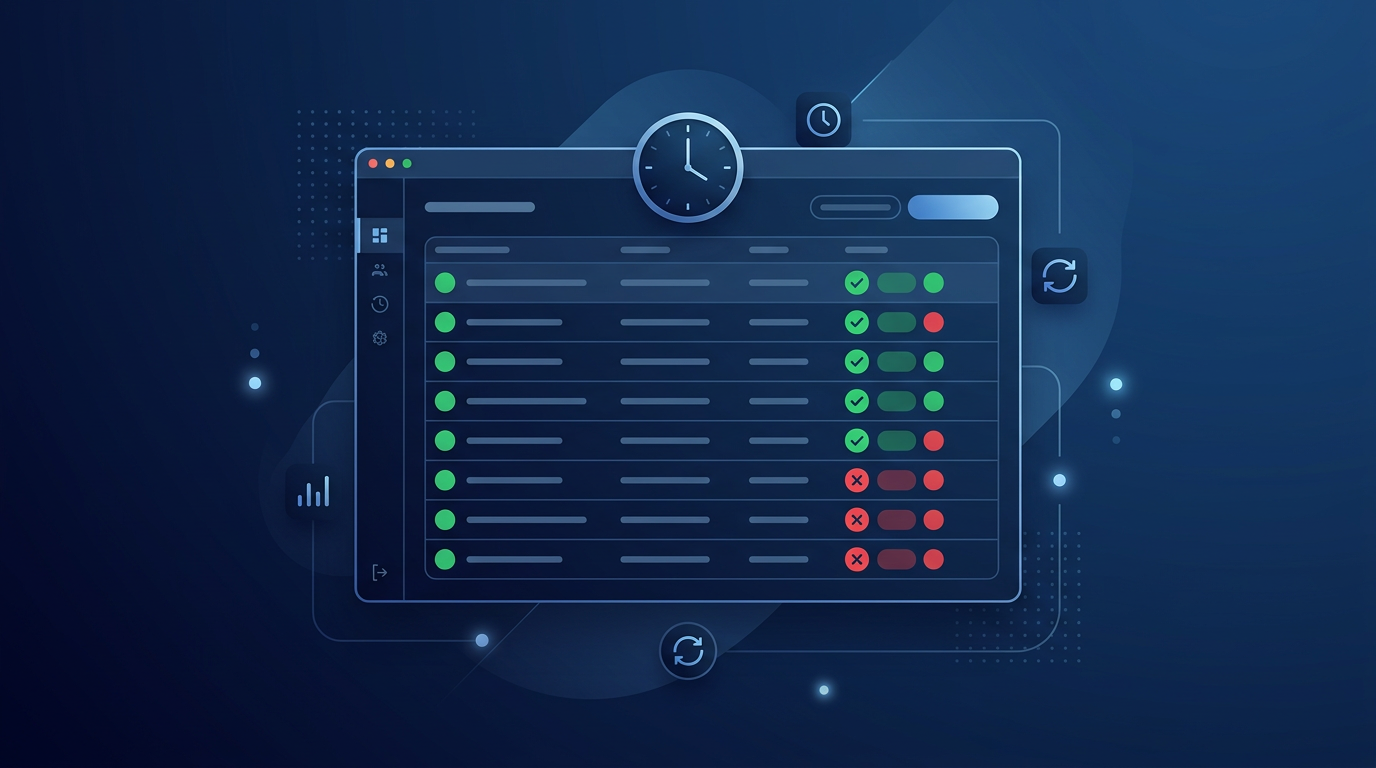
What a Useful Cron Dashboard Shows
A production-grade cron dashboard answers the five questions that matter to the operator on call:
| Column |
Source |
Why it matters |
| Job name |
Extracted from session ID |
Identifies which scheduled task ran |
| Status |
agent_end event status field |
Did it complete, fail, or get interrupted? |
| Start / End time |
before_agent_start and agent_end timestamps |
When it ran and how long it took |
| Duration |
Computed from start and end |
Detects slowdowns before they become timeouts |
| Tool count |
Count of tool_call events in session |
Baseline for normal behavior; spikes indicate anomalies |
| Block count |
Count of policy_block events in session |
Shows whether the agent tried something it should not have |
| Event count |
Total events in session |
Overall activity level; useful for trend analysis |
The drill-down for each run shows the full event timeline: every tool call, every policy decision, and every redaction event, in order. This is the tool call history scoped to a single cron run.
Building Run Summaries from Event Streams
The key insight is that a "run" is not a first-class concept in the event stream; it is a grouping of events that share a session ID and fall within a start/end boundary. Building run summaries is an aggregation problem:
- Detect run boundaries: a
before_agent_start event opens a run; an agent_end event closes it. The session ID ties them together.
- Aggregate events within the boundary: count tool calls, count policy blocks, track unique tools, compute duration.
- Store the summary: write a run record with the computed fields. This can be a database row (for dashboard queries) or a JSON object (for API access).
- Handle incomplete runs: if the agent crashes before emitting
agent_end, the run summary should show "in progress" or "unknown" status. A timeout heuristic (no new events for 10 minutes) can mark it as "timed out."
This aggregation can happen in real time (as events arrive) or as a batch process (scan the JSONL file periodically). Real-time aggregation gives you a live dashboard; batch processing is simpler but introduces a delay.
From Raw Events to a Runs Table
The transformation from raw events to a runs table follows a standard ETL pattern:
// On receiving a before_agent_start event:
openRuns[sessionId] = {
sessionId,
startTime: event.ts,
toolCount: 0,
blockCount: 0,
eventCount: 0,
status: "running"
};
// On receiving a tool_call or policy_block event:
if (openRuns[sessionId]) {
openRuns[sessionId].eventCount++;
if (event.eventType === "tool_call") openRuns[sessionId].toolCount++;
if (event.action === "block") openRuns[sessionId].blockCount++;
}
// On receiving an agent_end event:
if (openRuns[sessionId]) {
openRuns[sessionId].endTime = event.ts;
openRuns[sessionId].duration = event.ts - openRuns[sessionId].startTime;
openRuns[sessionId].status = event.status || "completed";
saveRunSummary(openRuns[sessionId]);
delete openRuns[sessionId];
}
The result is a table of run records that can be queried by job name, status, time range, or any computed field. This is the data layer that a dashboard renders into a sortable, filterable view.
How Zedly Shield Fits
Zedly Shield's dashboard includes a Runs tab that implements the cron visibility pattern out of the box:
- Automatic session grouping: Shield captures
before_agent_start, agent_end, and all intermediate tool call events. The Runs tab groups these by session ID and computes start time, duration, tool count, event count, and block count for each run.
- Cron session identification: cron-triggered sessions are automatically identified by their session ID naming pattern. The dashboard can filter to show only cron runs, only interactive runs, or both.
- Timeline drill-down: clicking on any run opens a timeline view showing every event in chronological order. Each event shows the tool name, sanitized arguments, the action taken, and the timestamp. This is the audit log scoped to a single run.
- Multi-instance support: if you manage multiple OpenClaw deployments (dev, staging, production), each instance's cron runs appear in the dashboard with instance-level filtering. One view across your entire fleet.
No ETL pipeline to build, no database schema to design, no dashboard to code. Install the Shield plugin, configure the cloud API key, and cron run history appears in the dashboard on the next scheduled execution.
Run the OpenClaw Risk Check
See how your OpenClaw cron jobs are running and whether they have adequate monitoring. Our team will review your scheduled tasks, assess visibility gaps, and show you how run history tracking can improve reliability and incident response.
Explore Zedly Shield
Frequently Asked Questions
Does OpenClaw have a built-in cron job dashboard?
OpenClaw has a cron system that runs scheduled tasks and stores run history on disk. You can view recent runs through the CLI, and the desktop UI shows some scheduling information. However, there is no purpose-built dashboard that aggregates run history across time with filters, status indicators, duration tracking, and tool-level detail. The built-in views are functional but are designed for quick checks, not for operational monitoring of production deployments.
How does Zedly Shield identify cron sessions?
OpenClaw assigns session IDs with a consistent naming convention for cron-triggered runs, typically following the pattern 'agent:main:cron:job-name'. Shield's event pipeline captures the session ID from every hook invocation. The Runs tab groups events by session ID and identifies cron sessions by matching this naming pattern. This means cron runs appear automatically in the dashboard without any additional configuration.
Can I see which tools a cron job called?
Yes. Each run in the dashboard includes a tool count and an event timeline. The timeline shows every tool invocation in order: tool name, sanitized arguments, the action taken (allow, block, redact), and the timestamp. You can drill into any run to see the full sequence of tool calls, which is particularly useful for debugging cron jobs that fail intermittently.
How do I get alerts when a cron job fails?
Shield's event pipeline captures agent_end events that include the session's final status. For cron jobs that end in error, the Runs tab shows a failed status badge. To receive proactive alerts, forward events to your existing monitoring system (PagerDuty, Slack, email) based on the event type and status fields. Shield's cloud dashboard can also be configured to send webhook notifications for specific event patterns.
What if my cron job runs but produces wrong results?
A wrong-result scenario is harder to detect automatically than a crash. The tool call timeline helps: you can review which tools fired, in what order, and with what arguments. If the cron job is producing unexpected output, the event sequence often reveals where it diverged from the expected path (a different file read, a tool call that was blocked, or an argument that was modified by a policy). Comparing timelines between a known-good run and the problematic run is the fastest diagnostic approach.
Ready to get started?
Runtime safety for agentic AI. PII redaction, policy-based blocking, and tamper-evident audit logs for OpenClaw.