OpenClaw Setup Assistant: Skip the YouTube Rabbit Hole
Zedly AI Editorial TeamApril 1, 20268 min read
OpenClaw is the most capable open-source agent framework available — 300K+ GitHub stars, shell access, file system control, browser automation, persistent memory, and cron scheduling. But getting it configured and running? That's where most people get stuck. The current resources are scattered YouTube videos that take 45 minutes to watch, GitHub issues with conflicting advice, and Discord threads that assume you already know what you're doing. If you're not deeply technical, the gap between "installed" and "first agent running" can take hours.
This article explains why OpenClaw setup is harder than it should be, what an actual setup assistant does (spoiler: it's not a chatbot), how the secure remote access works, and what gets configured in a typical session. If you've been fighting config files or watching your third YouTube tutorial, this is the alternative.
Why OpenClaw Setup Is Hard
OpenClaw's power comes from its flexibility, but flexibility creates configuration surface area. A working deployment requires getting all of these right:
LLM provider API keys: each provider (OpenAI, Anthropic, Google, Groq, Ollama) has its own key format, endpoint URL, and rate limit behavior. A typo in any key means silent failures or cryptic error messages.
Model routing: deciding which model handles which agent, balancing cost against capability. A contract analysis agent needs GPT-4o or Claude Opus; a daily scraping agent works fine on GPT-4o-mini. Getting this wrong means overspending or getting poor results.
Gateway configuration: port settings, environment variables, Node.js version requirements (22+), and process management. The gateway has to start cleanly and stay running.
Plugin installation: plugins like Zedly Shield require npm installation, configuration keys, and gateway restart. Each plugin has its own setup steps.
Permissions and file paths: agents need read/write access to specific directories. Misconfigured permissions mean tools fail silently or produce permission-denied errors mid-workflow.
Cron and scheduling: running agents on a schedule requires cron configuration, log output handling, and error recovery. A misconfigured cron job runs once, fails silently, and never runs again.
Each step has multiple failure modes, and the errors are often unclear. "Connection refused" could mean a wrong port, a wrong API key, a firewall rule, or a process that didn't start. You end up searching GitHub issues, cross-referencing Discord threads, and rewatching YouTube timestamps trying to figure out which config value is wrong.
The OpenClaw documentation covers the concepts, but it can't cover every combination of OS, Node version, LLM provider, and plugin configuration. That's the gap: you understand what you want, but the 15-step path from "installed" to "working" has too many places to go wrong.
What a Setup Assistant Actually Does
The Zedly Setup Assistant is not a chatbot. It's not a docs page. It's not a video tutorial with "pause here and try this" instructions.
It's an AI-assisted engineer who connects to your machine, looks at your actual configuration, and fixes what's wrong. The engineer:
Brings up the Zedly OpenClaw container if it isn't running yet — OpenClaw, Shield, and the tunnel client are pre-installed in the image, so Docker is the only thing you need on your host
Inspects your existing openclaw.json and identifies configuration errors
Configures your preferred LLM providers with verified API keys
Sets up model routing optimized for your use case and budget
Installs and configures plugins (Shield for security, custom skills for specific workflows)
Starts the gateway and verifies it runs cleanly
Runs your first agent and confirms it works end-to-end: tool calls execute, model responds, output is correct
Sets up cron scheduling if you need recurring agent runs
Backs up your working configuration so you can restore it if an update breaks something
The difference between this and a tutorial: the engineer sees your specific errors, your specific environment, your specific API keys. No guessing, no "it should look like this" — they see what it actually looks like and fix it.
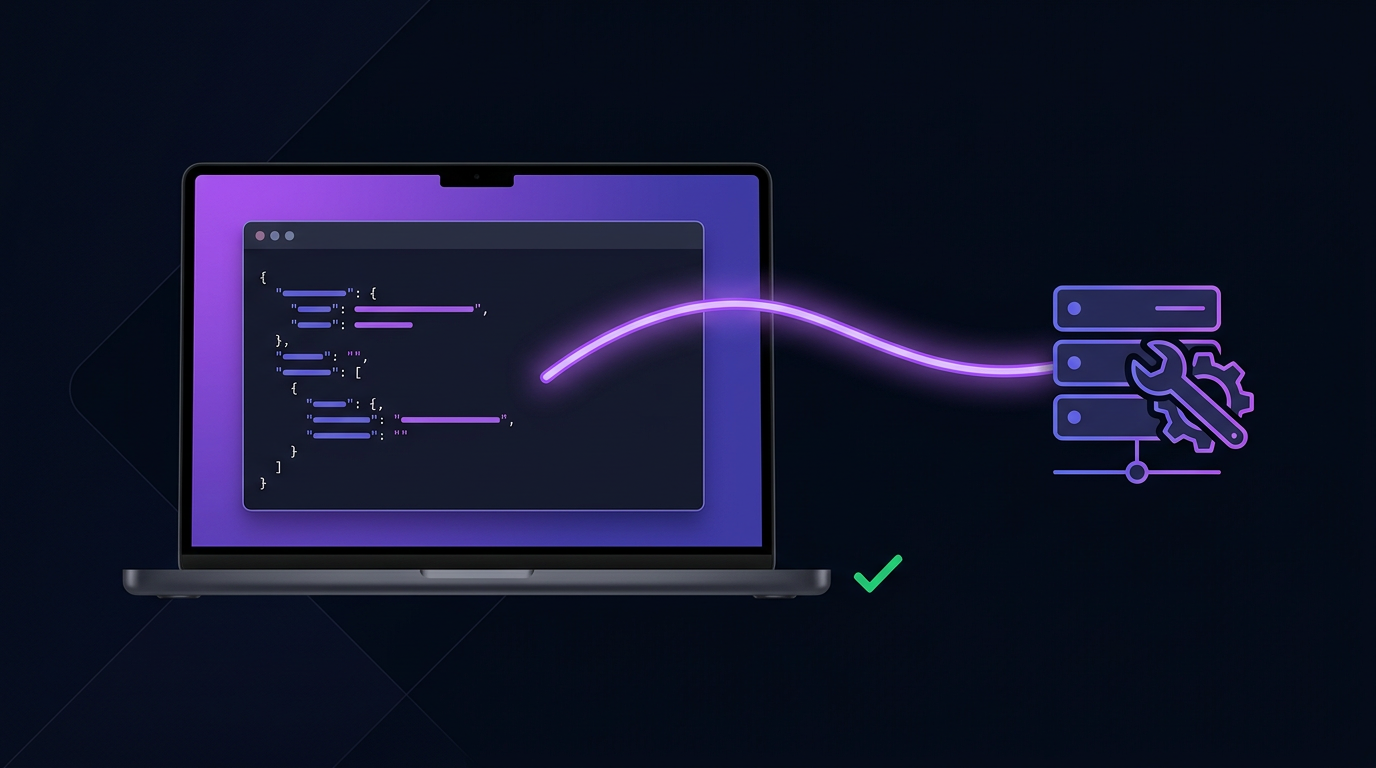
The setup uses a reverse SSH tunnel into your OpenClaw container with per-session key authentication — no shared passwords, no permanent credentials, and no inbound port opened on your host. Here's the flow:
Create a session on the Zedly Setup dashboard — a unique SSH key is generated for your session
Copy and run the one-command bootstrap shown for your OS (curl ... | bash on macOS/Linux, irm ... | iex in PowerShell on Windows). It pulls the Zedly OpenClaw image, creates the container, injects the session key, and opens the tunnel — no password needed
The container opens an outbound reverse tunnel to the Zedly setup server. Your host never exposes an inbound port.
The setup engineer connects back through the tunnel into your OpenClaw container to install workflows, configure providers, and provide support access. All commands are logged.
Run docker stop to disconnect — the session key is automatically revoked on the server
Key security properties:
Per-session SSH key: each session generates a unique ed25519 key pair. No shared passwords, no reused credentials. One session = one key.
Restricted tunnel account: the tunnel connects to a locked-down account on the Zedly server that cannot execute commands, access files, or do anything except hold the tunnel open.
Localhost-only binding: the tunnel port is only reachable from the Zedly server itself — it is not exposed to the internet. No external actor can reach it.
Automatic key revocation: when the session ends, the key is removed from the server. No lingering access, no forgotten credentials.
Container isolation: the tunnel terminates inside the sandboxed OpenClaw container, not your host OS. The container only sees the handful of folders the bootstrap bind-mounts into it — the rest of your machine stays invisible.
User-initiated, user-terminated: you start the tunnel and you close it. Zedly cannot connect to your container without you actively running the bootstrap command. docker stop closes it instantly.
Fully logged: every command executed during the session is recorded. You get the full log exported at the end.
No file exfiltration: configuration happens locally on your hardware. Files are not copied to Zedly servers.
This is the same security model used by support teams at hosting companies, SaaS vendors, and managed service providers — but with stronger isolation. The reverse tunnel means the connection originates from the container on your machine, the tunnel account is restricted to forwarding only, and each session gets a unique throwaway key.
Your macOS / Windows / Linux Machine
Docker is the only prerequisite — OpenClaw + Shield ship inside our image
You control the tunnel. The engineer configures your local instance. Every command is logged.
What Gets Configured in a Session
A standard setup session covers this checklist. Everything is verified working before the session ends:
Item
What's Done
LLM Providers
API keys configured for your preferred providers (OpenAI, Anthropic, Google, Groq, Ollama). Each verified with a test call.
Model Routing
Assign models to tasks based on your cost/quality targets. Frontier models for reasoning, budget models for extraction.
Gateway Startup
Gateway starts cleanly with no errors. Port conflicts resolved, environment variables set, process management configured.
Plugin Installation
Zedly Shield for security, plus any custom plugins or skills you need. Each plugin tested after install.
First Agent Test
A real agent runs end-to-end: prompt sent, tools invoked, model responds, output verified. Not a health check — a real workflow.
Cron Setup
Scheduled agent runs configured if needed. Log rotation and error handling included.
Config Backup
Working configuration snapshot saved locally. Restore point if a future update breaks something.
For enterprise teams, the session also covers security configuration with data loss prevention policies, content deny lists, and audit log setup. If you need to run multiple OpenClaw instances on one machine, each container gets its own session and independent configuration. Once configured, you can deploy pre-built workflows from the OpenClaw use cases gallery — email triage, voice operator, vibe coding, and more — directly through your setup session.
Runtime Security: Why Setup Alone Isn't Enough
Getting OpenClaw configured and running is step one. But once agents are live, they have shell access, file system control, and direct API connectivity to your LLM providers. That means they can read sensitive files, execute arbitrary commands, and send data to external models — all by design. The same capabilities that make agents powerful also make them a vector for accidental data exposure.
Without guardrails, a single prompt injection or misconfigured agent can leak API keys, PII, trade secrets, or internal documents to an LLM provider's servers. The agent doesn't know what's sensitive — it processes whatever it reads. If it reads your .env file or a customer database export, that content goes to the model.
Zedly Shield is an OpenClaw plugin that sits at the execution boundary — between what the agent does and what reaches the LLM. It provides:
PII redaction: credit card numbers, Social Security numbers, email addresses, and phone numbers are detected and redacted before data leaves your machine
API key and secret detection: OpenAI keys, AWS credentials, GitHub tokens, private key headers, and other secrets are blocked from being sent to models
Content deny lists: define keywords, file patterns, or topics that agents are not allowed to send — company names, project codenames, internal terminology
Audit logging: tamper-evident JSONL logs of every tool call, every policy decision, and every redaction event. Full accountability for what agents did and what was blocked
Data loss prevention: the same DLP capabilities that enterprise security teams expect, applied at the agent execution layer rather than the network perimeter
Shield gets installed and configured during your setup session — it's part of the standard checklist. But it's worth understanding why it matters: OpenClaw agents are the most capable tools you'll deploy, and the gap between "running" and "running safely" is where most teams get burned. Setup gets you working. Shield keeps you protected.
Ongoing Support: When Things Break
OpenClaw is actively developed. LLM providers change their APIs. Model versions get deprecated. Plugin updates introduce incompatibilities. When your working setup stops working, you need someone who can diagnose the problem quickly — not a 30-minute YouTube video on re-configuring from scratch.
Monthly support covers:
OpenClaw update troubleshooting: a new version breaks your config, we fix it in a session
LLM provider changes: a provider deprecates a model or changes pricing, we update your routing
Plugin conflicts: two plugins clash after an update, we diagnose and resolve
Performance tuning: agents running slow, costing too much, or producing poor output — we optimize
Each support session uses the same secure tunnel process. You run the command, we connect, we fix, you disconnect. Full session log exported every time.
Skip the Config Struggle
The Zedly Setup Assistant gets OpenClaw running on your machine in one session. No YouTube rabbit holes. No Discord guesswork. A real engineer who can see your actual config and fix what's wrong.
14-day free trial, no credit card — install in Docker and get your first agent running before you pay
15-30 minute session — LLM providers, model routing, plugins, and first agent test
Full session log — every command logged and exportable